
GPIO, Switch Debouncing and Interrupts
In this lab you configure STM32 pins as inputs and outputs from the Device Configuration Tool, drive four LEDs as a binary counter, and increment that counter from a push button. The button is read with an external interrupt rather than polled, and you add software debouncing so one physical press counts exactly once.
Objectives
- Configure GPIO pins for input and output with the STM32CubeIDE configuration tool.
- Write an application using the HAL (Hardware Abstraction Layer) library.
- Understand how an interrupt reaches your code, from the pin to the callback.
- Implement software debouncing so a mechanical button press is detected reliably.
Before the lab
Finish the Setup Guide at home. Installing STM32CubeIDE and letting it download the F4 MCU package takes far too long to do in the lab.
Pre-Lab
Answer these before the session:
- Review GPIO and interrupt concepts.
- How can you solve bouncing in mechanical switches? Name a hardware and a software approach.
- Read through the configuration steps and the debouncing code so you know what you are building.
Background
The structure of a GPIO pin
A GPIO pin is not a wire into the core. It is a small circuit whose shape you choose by writing to the GPIO registers — and CubeMX writes those registers for you.
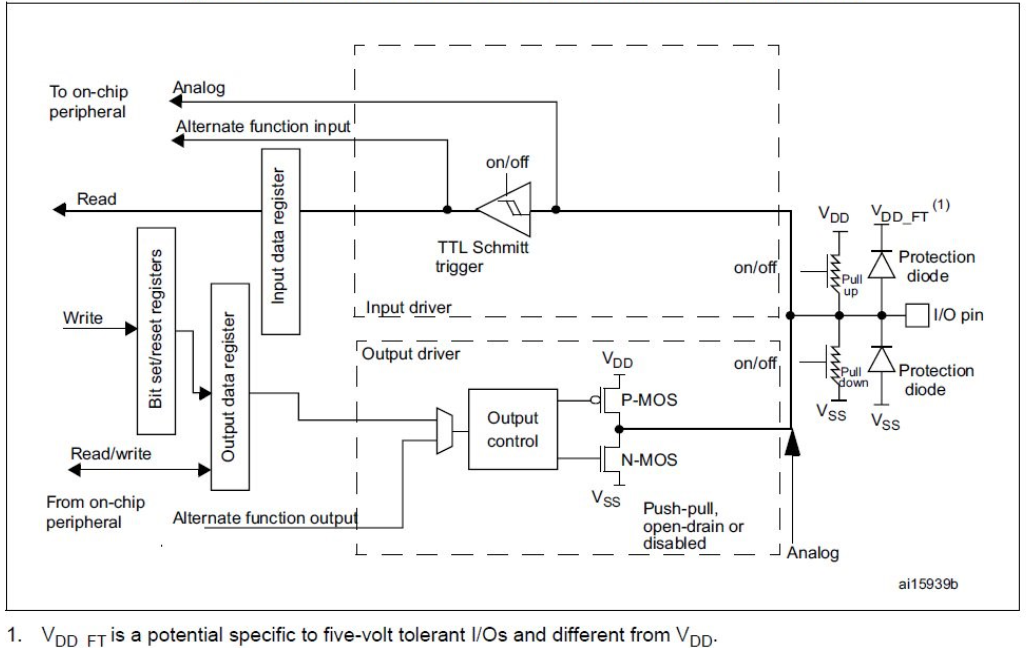
Reading left to right: the pad is protected by two clamping diodes, feeds a Schmitt trigger on the input path (whose output lands in the input data register, IDR), and is driven on the output path by two transistors fed from the output data register (ODR). Optional pull-up and pull-down resistors sit between the pad and the supply rails. Every mode below is just a different subset of this circuit being enabled.
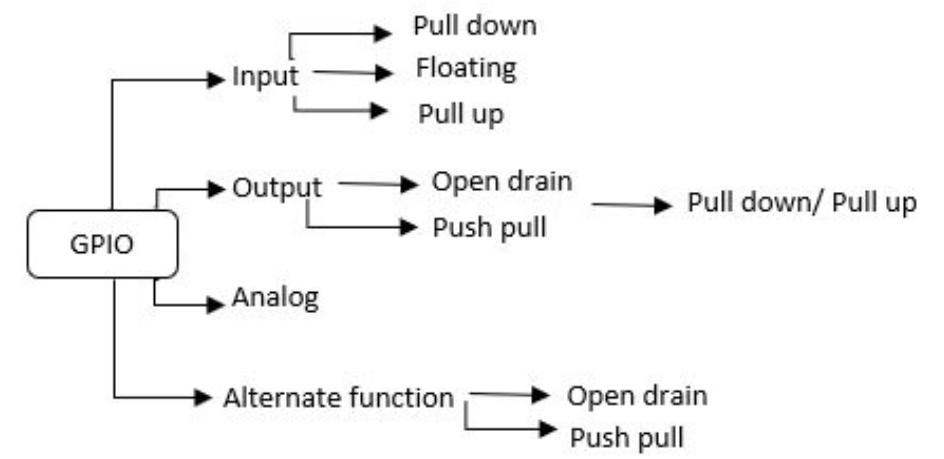
Each pin can be individually configured as:
| Mode | Used for |
|---|---|
| Digital input | Buttons, switches, digital sensor outputs |
| Digital output | LEDs, relays, driver enable lines |
| Analog | ADC and DAC channels — the Schmitt trigger is disabled (Experiment 3) |
| Alternate function | A peripheral drives the pin instead of the ODR: UART, I²C, timer PWM |
Input mode
When a pin is an input, you pick one of three options:
- Input with internal pull-up — the pin idles high; a switch to ground pulls it low.
- Input with internal pull-down — the pin idles low; a switch to VDD pulls it high.
- Floating input — the level follows the external signal. With nothing connected, the Schmitt trigger toggles randomly on ambient noise.
Never leave a button input floating
A floating input has no defined idle level, so you get phantom interrupts from noise alone. Always enable a pull resistor, either the internal one or an external one on the breadboard.
Output mode
When a pin is an output, you pick one of two options:
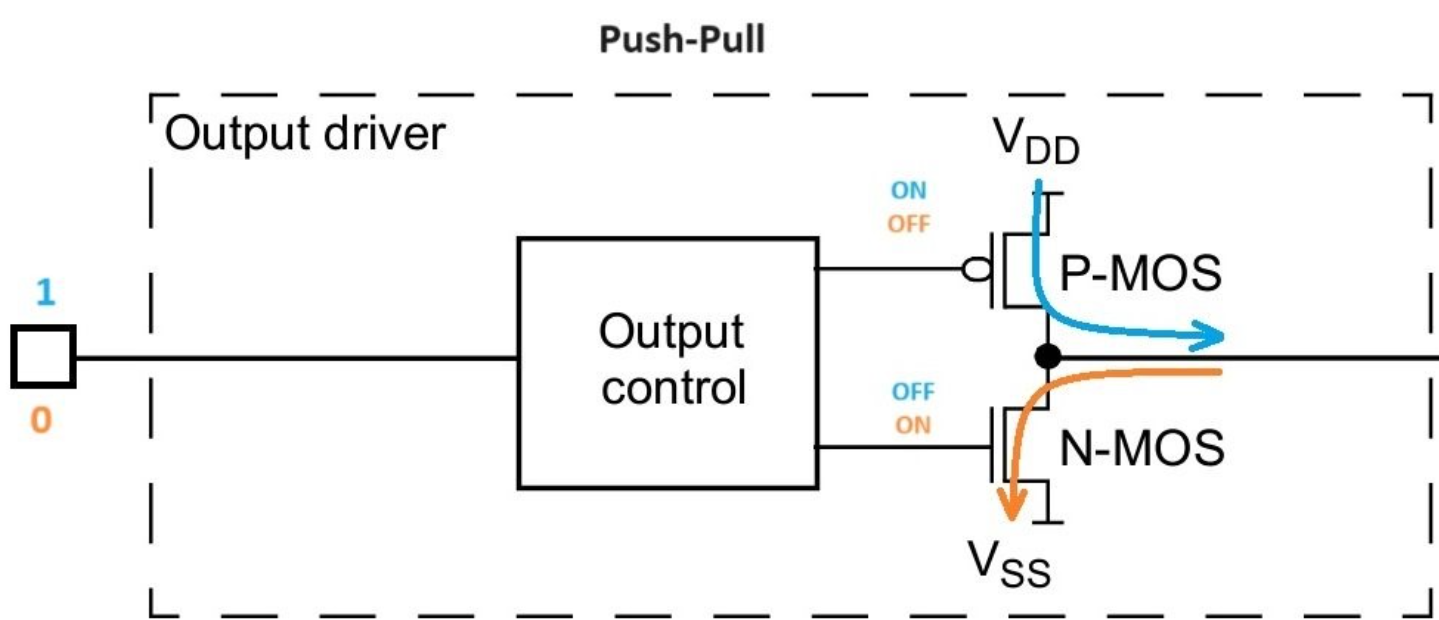
Push-pull — uses two transistors, one PMOS and one NMOS. One is on at a time, so the pin is actively driven both high and low. This is what you want for an LED.
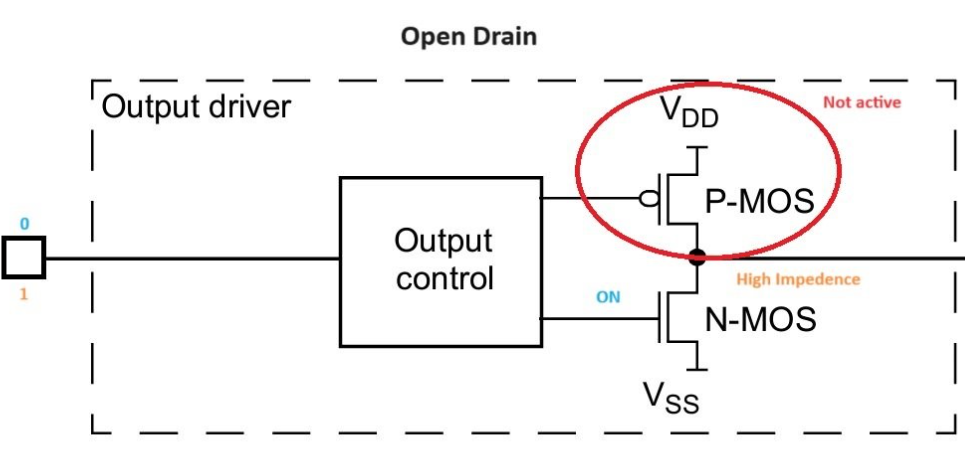
Open-drain — the PMOS is omitted. The pin can only pull low, or let go. An external pull-up provides the high level. This is what I²C needs, and what Experiment 2 relies on.
Alternate function outputs come in the same two flavours, also with optional pull-up or pull-down.
Switch bouncing
When you press a push button, two metal parts come into contact to close the circuit. They do not connect instantly: the contacts connect and disconnect several times before settling, and the same happens on release. It is a bouncing ball, in miniature.
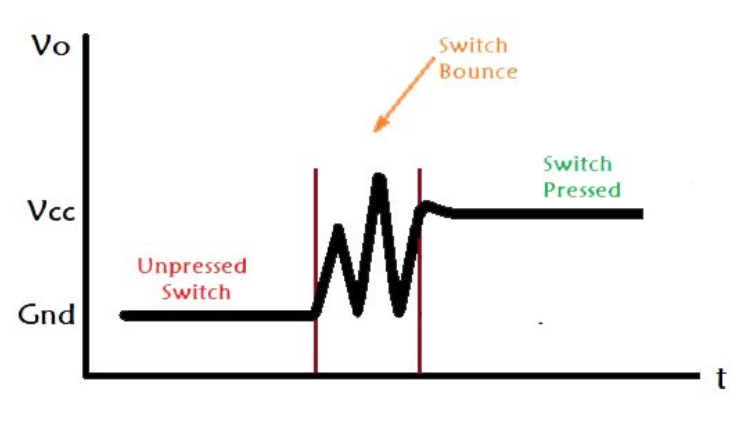
Read in software, one press therefore looks like several presses. A counter driven straight off the pin jumps by 3 or 7 instead of 1. The fix used in this lab is time-based debouncing: after accepting an edge, ignore any further edge for a few tens of milliseconds, because no human can press a button twice that fast.
Interrupts
An interrupt lets the processor suspend what it is doing and run a different piece of code in response to an event. Interrupts come from on-chip peripherals (a timer), from external inputs (a button on a GPIO), or from software.
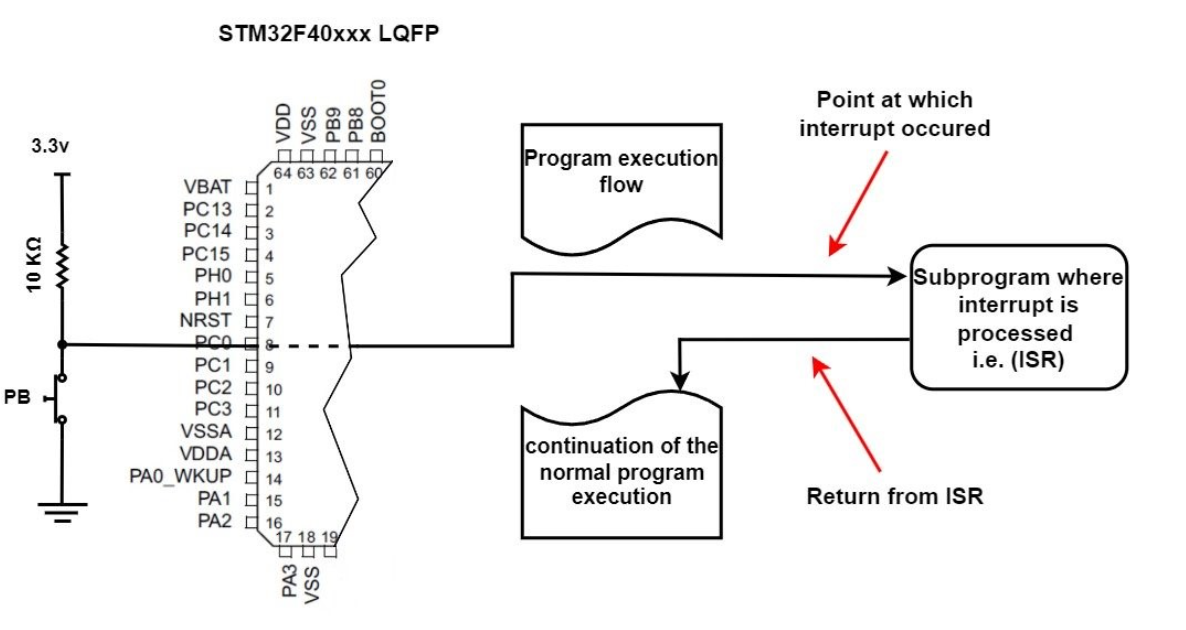
When a peripheral needs service, this sequence happens:
- The CPU suspends the current task and saves its context onto the stack.
- The processor runs an Interrupt Service Routine (ISR) that handles the event.
- The processor restores the context and resumes the suspended task.
On STM32, a pin interrupt travels: pin → EXTI line → NVIC → ISR. You will configure all three.
How EXTI lines are numbered — and why it constrains your wiring
There are 16 EXTI lines, one per pin number, not per pin. EXTI0 is shared by PA0, PB0, PC0 … and only one of them can use it at a time. So PA0 and PB0 cannot both be interrupt inputs, while PA0 and PA1 can.
Worse, the NVIC groups them: lines 0–4 get one ISR each (EXTI0_IRQn … EXTI4_IRQn), but lines 5–9 share EXTI9_5_IRQn and lines 10–15 share EXTI15_10_IRQn. In a shared ISR, HAL works out which line fired and calls HAL_GPIO_EXTI_Callback with the right pin — which is exactly why that callback takes a GPIO_Pin argument you must check.
Materials and Equipment
- Breadboard
- STM32F4 evaluation board (F407 Discovery or F411 Nucleo)
- 4 × LEDs, 1 × push button
- Jumper wires
- Resistors: 5 × 330 Ω, 1 × 10 kΩ
Relevant HAL APIs
I/O functions
/* Sets or clears the selected data port bit */
HAL_GPIO_WritePin(GPIOx, GPIO_PIN_x, GPIO_PIN_RESET);
HAL_GPIO_WritePin(GPIOx, GPIO_PIN_x, GPIO_PIN_SET);

/* Toggles the specified GPIO pin */
HAL_GPIO_TogglePin(GPIOx, GPIO_PIN_x);

/* Reads the specified input port pin */
HAL_GPIO_ReadPin(GPIOx, GPIO_PIN_x);

/* GPIOx     : x can be A, B, ... I
   GPIO_PIN_x: x can be 0 ... 15 */
EXTI line detection callback
This is the function that runs when an EXTI line detects the edge you configured. It is declared __weak in the HAL, so defining your own version overrides it — you never register it anywhere.
void HAL_GPIO_EXTI_Callback(uint16_t GPIO_Pin)
{
    if (GPIO_Pin == GPIO_PIN_x)
    {
        /* your code here */
    }
}
Timing
HAL_GetTick();     /* milliseconds since reset (the SysTick counter) */
HAL_Delay(100);    /* blocking delay, in milliseconds */
Never call HAL_Delay() inside an ISR
HAL_Delay() spins while waiting for HAL_GetTick() to advance, and the tick advances in the SysTick interrupt. By default SysTick has a lower priority than EXTI, so the tick never increments while your EXTI callback runs, and the delay never ends: the board hangs. Debounce by comparing ticks, as below — never by waiting.
Activity
Design and implement a four-bit binary counter using LEDs and push buttons with an STM32 microcontroller. The counter starts at 0 (all LEDs off) and increments by 1 on every button press. After it reaches the maximum it overflows back to 0, and this repeats forever. Use interrupts and debouncing to detect the press.
Step 1: Wire the hardware
Build the circuit below.
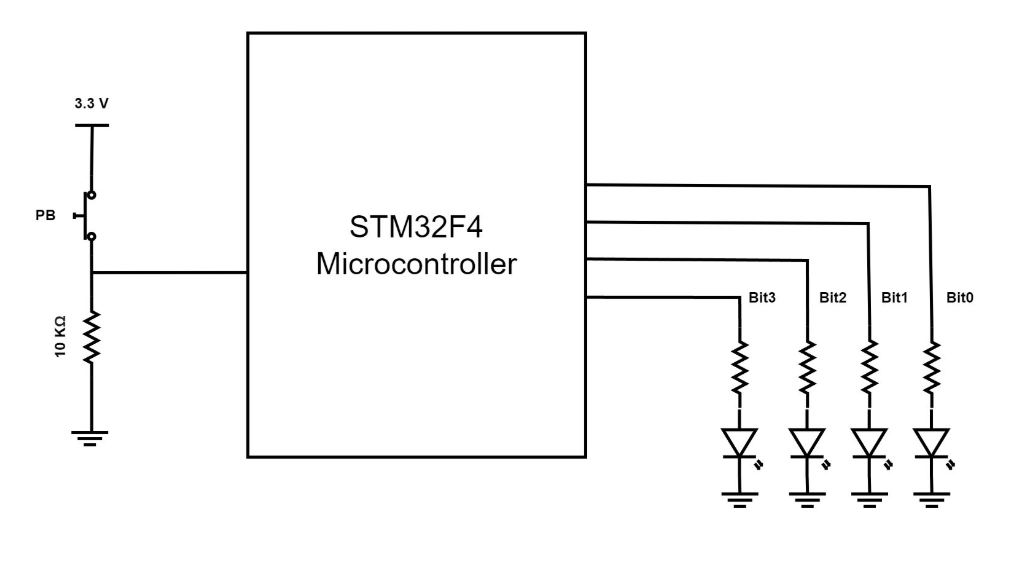
- Connect four GPIO output pins to the LEDs, each in series with a 330 Ω resistor. Pick one pin for each bit, from bit 0 (least significant) to bit 3.
- Connect the push button to a GPIO input pin, with the 10 kΩ resistor as a pull-down so the input sits at a defined low level while the button is open. Pressing the button connects the pin to +3.3 V.
Pins to avoid
- STM32F411 Nucleo: PA2, PA3, PC14, PC15, PA13, PA14.
- STM32F407 Discovery: PA13, PA14.
See Setup Guide → Know your board for why.
Pick your four LED pins on the same port
If bits 0–3 are all on, say, GPIOD, you can later replace the four HAL_GPIO_WritePin calls with a single write to GPIOD->ODR. Keep that in mind for Experiment 9.
Step 2: Configure the peripherals
Create the project. Follow Setup Guide → Create a lab project with the name
Exp1_Counter. Make sure Targeted Project Type is STM32Cube.RCC mode and configuration. Select the clock source from the external crystal by enabling HSE in the RCC drop-down list.
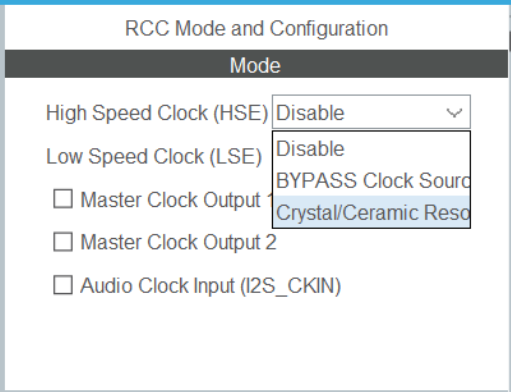
Clock configuration. Enter the frequency of the crystal on your evaluation board (8 MHz) in the Input frequency box, then enter the maximum frequency in the HCLK box and let CubeMX solve the PLL.
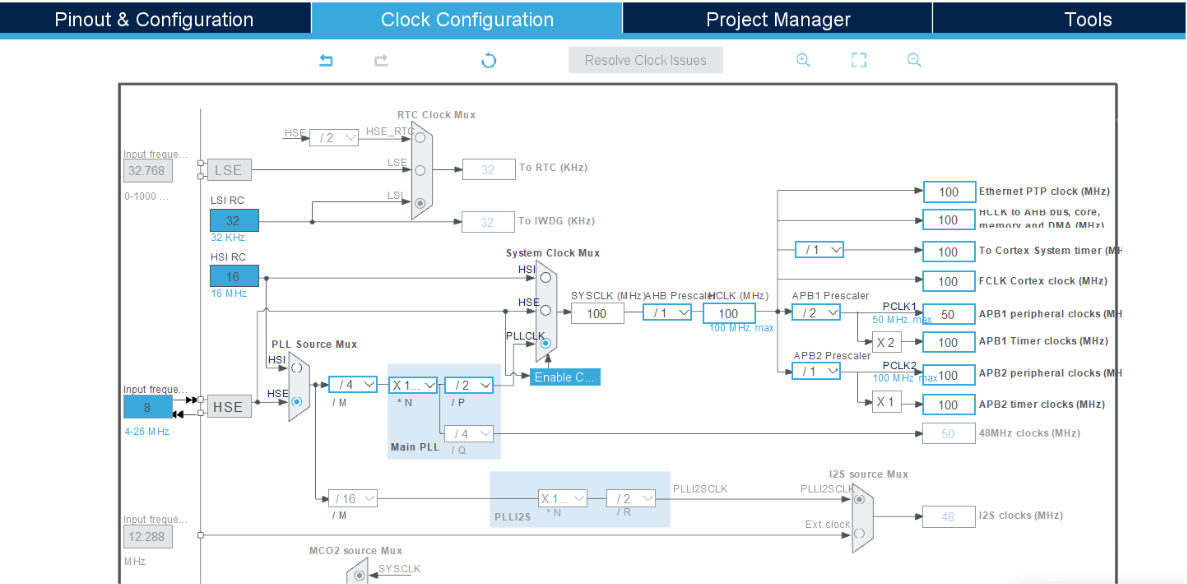
Configure the GPIO pins. In the Pinout & Configuration tab, set the pins connected to the LEDs as outputs and the pin connected to the button as an input.
In the pinout view, click a pin to assign its function. You need four
GPIO_Outputpins for the counter LEDs.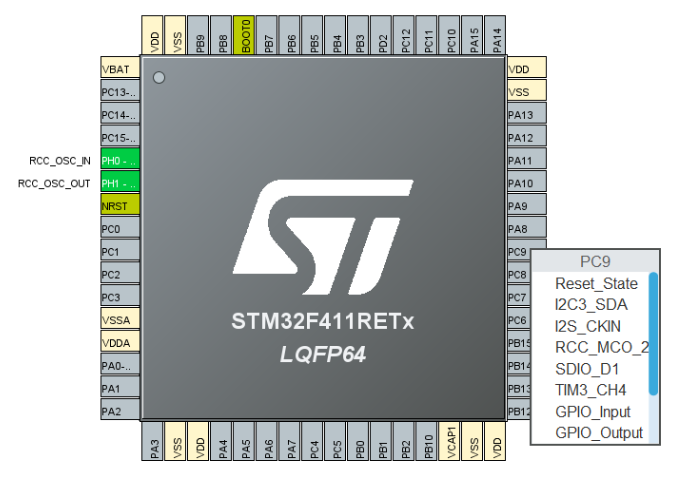
In the GPIO configuration table, set each pin's mode, pull and speed — and give each one a User Label. A label makes the generated code readable: you get
Bit_0_PinandBit_0_GPIO_Portinstead ofGPIO_PIN_12andGPIOD, and if you move a wire later you only change the.ioc.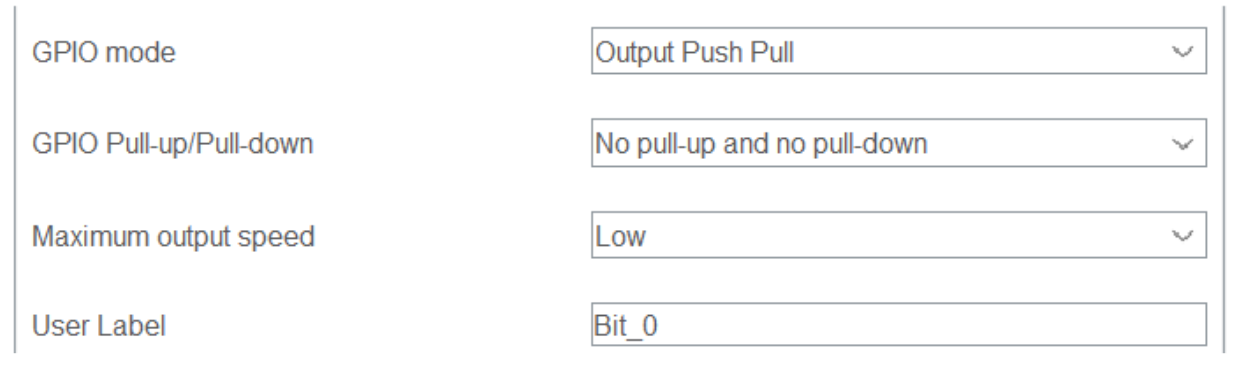
Label the four LED pins
Bit_0…Bit_3and the button pinEXTI_PB. The snippets below use exactly those names.Make the button pin an interrupt. In the pinout view, assign the button's pin to
GPIO_EXTIxfrom the drop-down menu instead ofGPIO_Input.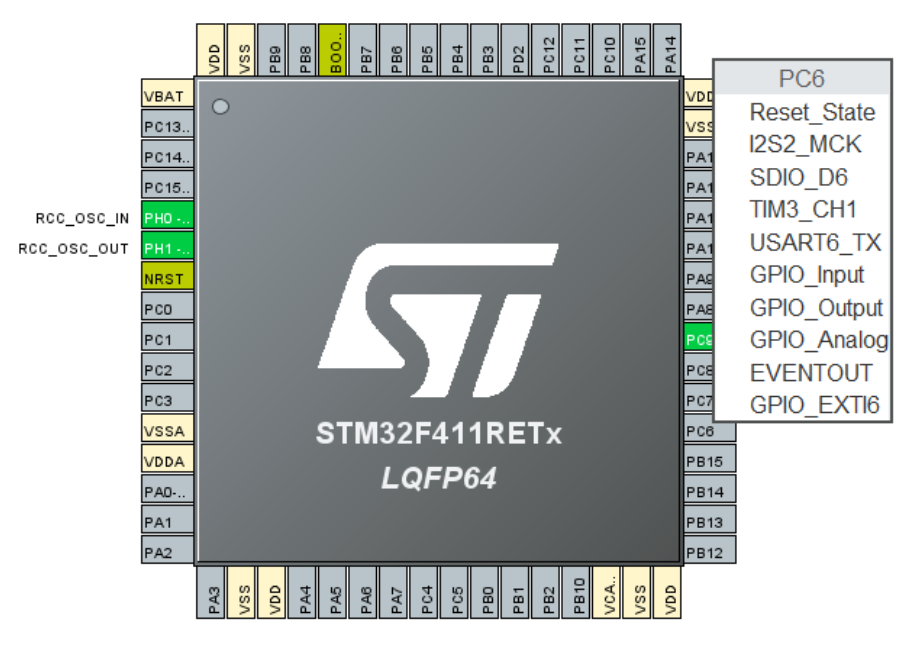
Enable the interrupt in the NVIC. The EXTI line is now configured, but the NVIC still ignores it. In the configuration panel, open NVIC (or the NVIC Settings tab under GPIO) and tick the box for the matching EXTI line interrupt.
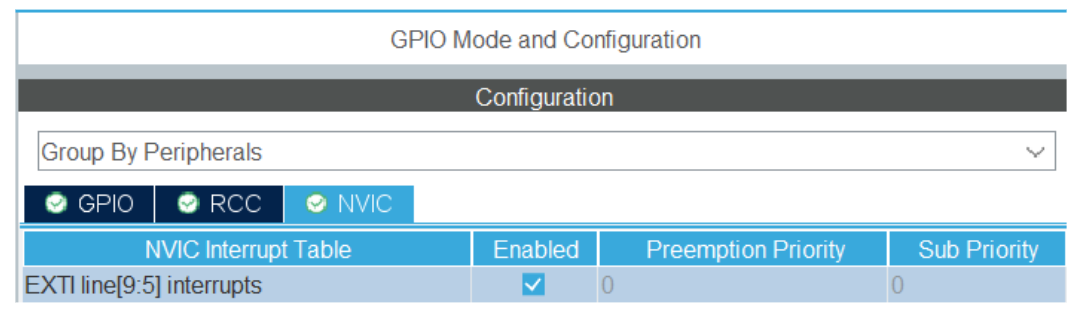
Configure edge detection. Back in the GPIO configuration, set the button pin's mode to External Interrupt Mode with Rising edge trigger detection, and set Pull-down (with the external 10 kΩ pull-down, either works; the internal one is belt and braces).
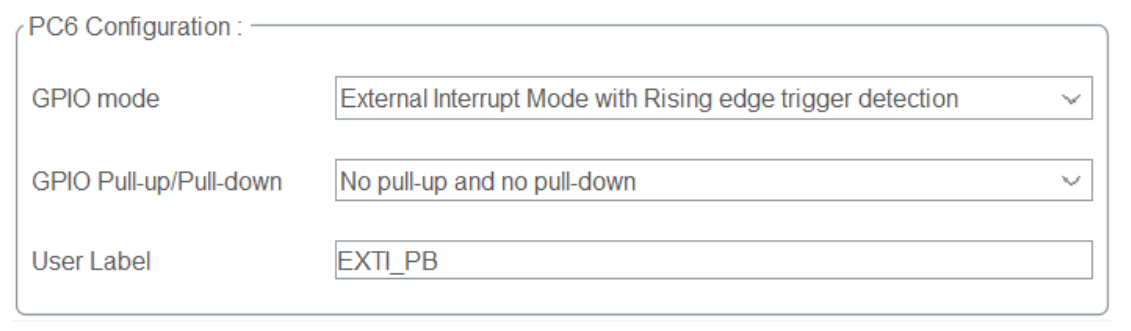
Rising edge, because the button pulls the pin up to 3.3 V when pressed. With a pull-up wiring instead, you would want falling edge.
Generate the code. Project → Generate Code.
Check what CubeMX actually generated
Open Core/Src/main.c and find MX_GPIO_Init(). You should see your LED pins configured with GPIO_MODE_OUTPUT_PP, the button pin with GPIO_MODE_IT_RISING, and at the end two NVIC calls:
HAL_NVIC_SetPriority(EXTI0_IRQn, 0, 0);
HAL_NVIC_EnableIRQ(EXTI0_IRQn);
Then open Core/Src/stm32f4xx_it.c and find EXTI0_IRQHandler(). It contains one line: HAL_GPIO_EXTI_IRQHandler(EXTI_PB_Pin). That HAL function clears the pending flag and calls HAL_GPIO_EXTI_Callback() — the one you are about to write. That is the whole chain, pin to callback.
Step 3: Handle the interrupt
Override HAL_GPIO_EXTI_Callback() to handle the GPIO interrupt, debouncing the press so mechanical bouncing does not trigger it repeatedly.
The tool for this is HAL_GetTick(), which returns the time in milliseconds since the MCU started running. By comparing the timestamps of consecutive edges and ignoring any that arrive too soon after the last, you debounce the input without blocking.
/* USER CODE BEGIN PV */
volatile uint16_t buttonPressCount = 0;
uint32_t currentTick  = 0;
uint32_t previousTick = 0;
const uint32_t debounceTime = 150;   /* ms */
/* USER CODE END PV */

/* USER CODE BEGIN 4 */
void HAL_GPIO_EXTI_Callback(uint16_t GPIO_Pin)
{
    if (GPIO_Pin == EXTI_PB_Pin)          /* the pin that raised the interrupt */
    {
        currentTick = HAL_GetTick();      /* ms since reset */

        if ((currentTick - previousTick) > debounceTime)
        {
            buttonPressCount++;
            if (buttonPressCount > 15)    /* 4 bits: wrap 15 -> 0 */
            {
                buttonPressCount = 0;
            }
            previousTick = currentTick;       /* remember this edge */
        }

    }
}
/* USER CODE END 4 */
Answer these questions about the code:
- Why are the variables defined as global?
- Explain the reason for using the
volatilekeyword. - How could you use
currentTickandpreviousTickinside the function as locals without breaking the code?
A hint for question 2
The compiler sees that buttonPressCount is never modified by anything in main()'s control flow, so while (1) { WriteBinary4Bit(buttonPressCount); } looks to it like a loop that writes the same value forever — and it is free to hoist the read out of the loop. volatile tells it the value can change behind its back, so it must be re-read every time. This is also why Live Expressions can show it updating.
Step 4: Organise the code into functions
Write a function that converts the decimal count into its binary equivalent and drives the corresponding GPIO outputs (Bit_0 to Bit_3).
/* USER CODE BEGIN 4 */
void WriteBinary4Bit(uint16_t num)
{
    uint16_t bit0, bit1, bit2, bit3;

    bit0 = (num >> 0) & 1;
    bit1 = (num >> 1) & 1;
    bit2 = (num >> 2) & 1;
    bit3 = (num >> 3) & 1;

    HAL_GPIO_WritePin(Bit_0_GPIO_Port, Bit_0_Pin, bit0);
    HAL_GPIO_WritePin(Bit_1_GPIO_Port, Bit_1_Pin, bit1);
    HAL_GPIO_WritePin(Bit_2_GPIO_Port, Bit_2_Pin, bit2);
    HAL_GPIO_WritePin(Bit_3_GPIO_Port, Bit_3_Pin, bit3);
}
/* USER CODE END 4 */
(num >> n) & 1 shifts bit n down to the bottom and masks off everything else, giving 0 or 1 — which is exactly what HAL_GPIO_WritePin wants as its state argument.
Step 5: Put it together
In main.c:
- Define the variables and the EXTI callback from Step 3.
- Add the
WriteBinary4Bitfunction and its prototype, then use it to drive the LEDs from the number of button presses.
int main(void)
{
    /* HAL_Init(), SystemClock_Config() and MX_GPIO_Init() are generated for you */
    HAL_Init();
    SystemClock_Config();
    MX_GPIO_Init();

    /* USER CODE BEGIN WHILE */
    while (1)
    {
        /* The ISR only counts. The main loop does the slow work of
           driving the four LEDs from the current count. */
        WriteBinary4Bit(buttonPressCount);
    }
    /* USER CODE END WHILE */
}
Build the project and flash it to your STM32.
Notice the division of labour: the ISR does the minimum — one subtraction, one increment — and the main loop does the four pin writes. This is the pattern every later experiment uses.
After the lab activity
Press the push button and observe the LED behaviour. Then work through the following.
Explore in debug mode
Start a Debug session (Setup Guide → Build, flash and debug) and:
- Add
buttonPressCountto Live Expressions and watch it change as you press the button. - Set a breakpoint inside the EXTI callback and observe what happens when you press the button.
- Find the output data register (ODR) and the input data register (IDR) of your port in the SFRs view. Press the button and watch IDR; press it again and watch ODR follow the count.
Experiment with the debounce time
Change debounceTime to 0, 50, 100, 200 and 300 ms, and observe buttonPressCount each time.
debounceTime | What you should see |
|---|---|
| 0 | Every bounce counts. One press jumps the counter by several steps. |
| 50–150 | One press, one count. This is the usable range. |
| 300 | Reliable, but fast deliberate presses get swallowed. |
Questions
- Which function does the ISR call when an external interrupt (EXTI) event occurs?
- How is the ISR called in the code — who registers it?
- What happens if you configure the GPIO with a pull-up resistor instead?
- What do ODR0 to ODR15 in the output data register represent?
Common problems
| Symptom | Cause and fix |
|---|---|
| Counter jumps by 3 or 7 per press | debounceTime is 0 or too small, or you are comparing against the wrong variable. |
| Nothing happens at all | The NVIC interrupt is not enabled (step 6), or the pin is GPIO_Input rather than GPIO_EXTIx (step 5). Check that EXTIx_IRQHandler exists in stm32f4xx_it.c. |
| Counts on release instead of press | Edge detection is set to falling. With a pull-down wiring you want rising. |
| Counter increments on its own | The input is floating. Check the 10 kΩ pull-down and enable the internal pull-down too. |
| Board hangs on the first press | You called HAL_Delay() inside the callback. Debounce by comparing ticks instead. |
buttonPressCount shows <optimized out> | The variable is not volatile, or optimisation is above -Og. |
| LEDs all light dimly | Missing series resistors, or the pins are open-drain. They must be push-pull. |
| Debugger cannot connect after flashing | You assigned PA13 or PA14. See Setup Guide → Troubleshooting. |
Task
Add a second input button that changes the counting direction — increment or decrement — with each press. Read this button using the polling method, i.e. with HAL_GPIO_ReadPin(GPIOx, GPIO_PIN_x) in the main loop, rather than an interrupt.
Think about what polling costs you here, and whether this button needs debouncing too.
Things to try
- Replace the four
HAL_GPIO_WritePincalls with one write toGPIOx->ODR, using a mask so you only touch your four bits. Compare the generated assembly. - Make the counter count in Gray code instead of binary, so only one LED changes per step.
- Hold the button down. Does the counter run continuously, or increment once? Why?