
LCD, I²C and Keypad
In this lab you give your board a user interface. A 16×2 character LCD is driven over I²C through a PCF8574 port expander — two wires instead of ten — and a 4×4 matrix keypad is scanned in the background from the SysTick interrupt. Together they become a PIN-code lock.
Objectives
- Interface and control an LCD module over the I²C protocol.
- Scan a matrix keypad and decode which key was pressed.
- Write firmware that displays information based on keypad input.
- Gain practical experience in GPIO configuration, peripheral interfacing and non-blocking firmware design.
Builds on Experiment 1
The debouncing idea from Experiment 1 comes back here, applied to 16 keys instead of one button. Make sure you understand HAL_GetTick() debouncing before the session.
Pre-Lab
- What is a SysTick handler?
- Write a program that reads the status of an input pin and controls an output pin using the SysTick handler:
- Override
void SysTick_Handler(void)so that it reads the status of an input pin every 5 ms. - Use a flag to inform the main function that the pin has been triggered.
- Based on the status of the input pin, switch an output pin on or off from the main function.
- Override
- In I²C, every slave has a unique address, and in this experiment the slave is the LCD adapter board. How would you connect more than one LCD to the microcontroller?
Background
Character LCDs
In embedded systems, LCDs display sensor data, system status or a user interface. They range from simple character displays to graphical ones; this lab uses the first kind.
A character LCD (16×2, 20×4) displays text and numbers. The part number tells you the geometry: a 1602 module has 16×2 character cells, i.e. 2 rows × 16 columns, each cell a 5×8 dot matrix.
Controlling all of those dots directly from the microcontroller would need an impractical number of pins and a lot of software. Instead, each module ships with a controller — the Hitachi HD44780 — that drives the dots and lets you talk to the display by sending parallel data.
The HD44780 has two 8-bit registers:
| Register | Selected when RS = | Holds |
|---|---|---|
| Instruction Register (IR) | 0 | Commands: clear display, move cursor, set entry mode |
| Data Register (DR) | 1 | The character to show at the cursor position |
Think of the data register as a mailbox: you place a character in it, and the LCD displays it at the current cursor position.
LCD parallel connection
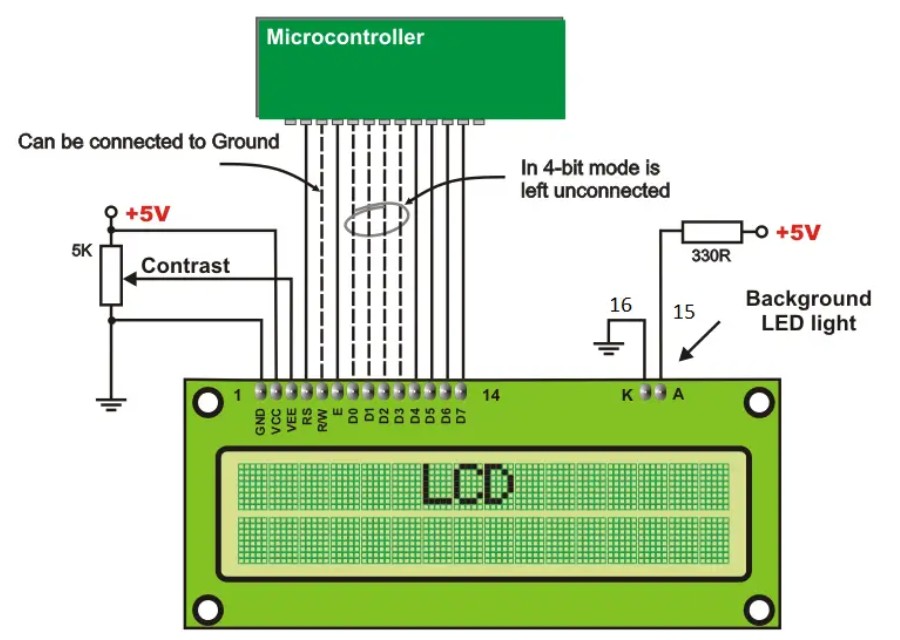
Each pin has a designated function:
| Pin | Function |
|---|---|
| VCC | Power supply input (+5 V) |
| GND | Ground |
| D0–D7 | 8-bit data bus. The LCD can also run in 4-bit mode, sending each byte in two steps and saving four I/O pins. |
| RS | Register Select: command (0) or data (1) |
| R/W | Write to the LCD when low (0), read from it when high (1). Usually tied to ground. |
| E | Enable. A pulse of a specific duration latches each transfer. |
| A, K | Anode and cathode of the backlight LED |
| VEE | Contrast control, via a potentiometer or the MCU |
The serial interface
Driving the LCD directly needs 6 to 10 pins: 4 or 8 data lines plus RS, R/W and E. That makes wiring complex and error-prone on a breadboard, and adds software overhead because the parallel interface needs careful timing and sequencing.
The common solution is a serial-to-parallel IC. The PCF8574 port expander converts a two-wire I²C bus to 8 bits of parallel I/O.
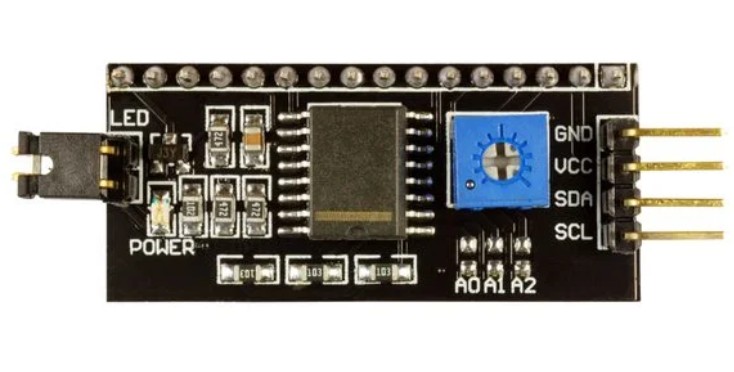
Ready-made adapter boards based on the PCF8574 solder straight onto the LCD's 16 pins. They include the backlight circuit, a contrast trimmer and the bus pull-up resistors.
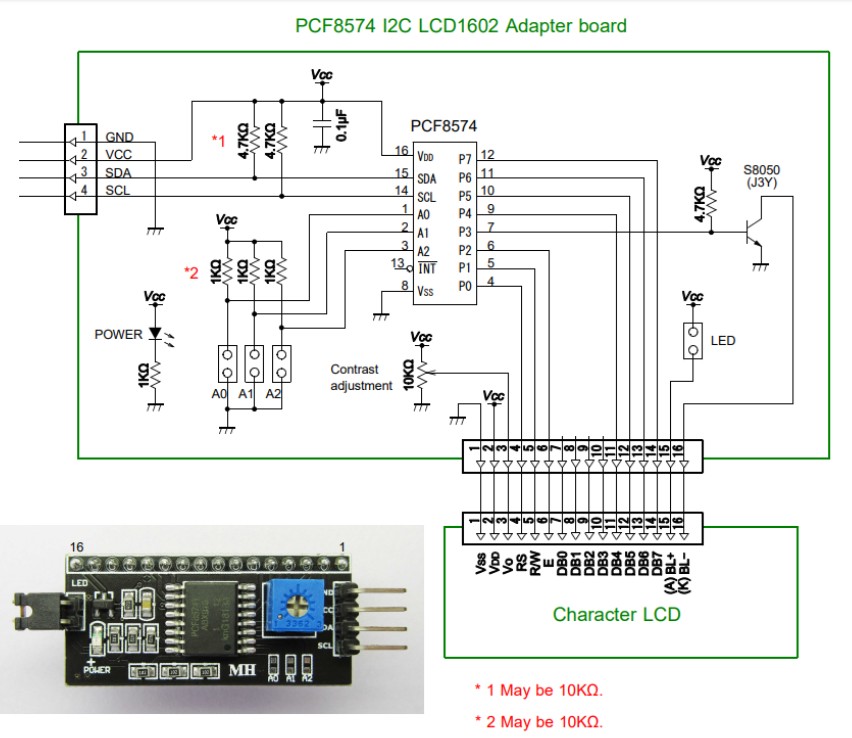
The board has 4 pins facing the microcontroller — GND, VCC, SDA, SCL — and 16 facing the LCD.
The I²C protocol
I²C (Inter-Integrated Circuit) lets multiple devices talk to a microcontroller over just two wires: SDA (serial data) and SCL (serial clock).
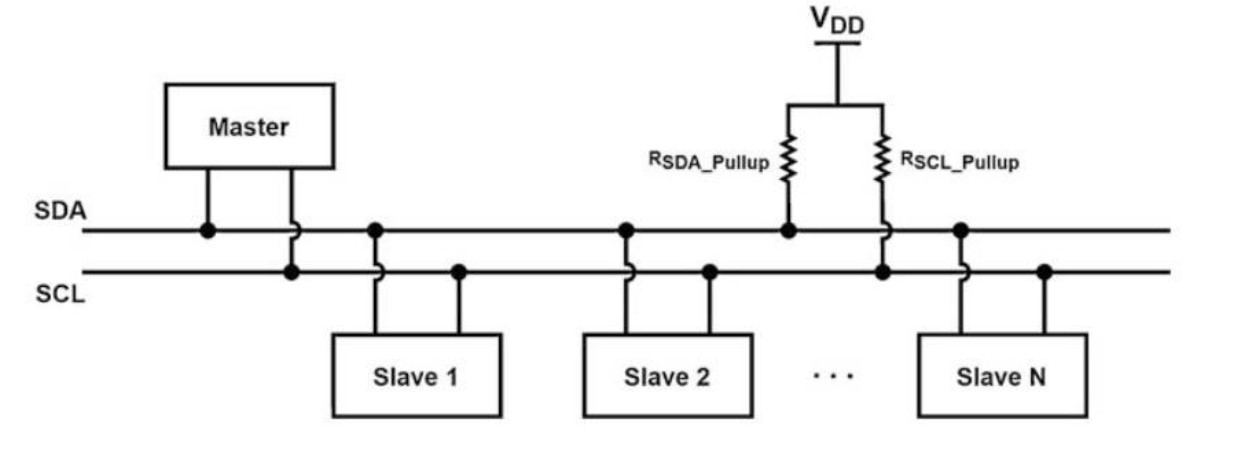
Data moves one bit at a time, but the bus is efficient and flexible because many slaves share the same two lines, each identified by a unique address — up to 128 devices with 7-bit addressing in standard mode.
I²C is popular in embedded systems for its simplicity and minimal pin usage. It is synchronous, master–slave and half-duplex. Both master and slaves can send and receive, the clock is always generated by the master, and communication is always started by the master. Speeds go up to 100 kbit/s in standard mode and 400 kbit/s in fast mode.
Why the bus lines are open-drain
Look at the schematic: SDA and SCL are pulled up by resistors, and every device can only pull them low — exactly the open-drain output mode from Experiment 1. Since nobody ever drives the line high, two devices talking at once cannot short the supply through each other; the line simply goes low. That is what makes shared addressing and multi-master arbitration possible, and it is why CubeMX configures I²C pins as GPIO_MODE_AF_OD.
Addressing the PCF8574
To connect the STM32 to the LCD over I²C, the PCF8574 adapter is wired to the LCD's 16 pins, while its SDA and SCL go to the microcontroller. The STM32 is the I²C master and the PCF8574 is the slave.
So what is the slave's address? From its datasheet, the upper 4 bits are fixed at 0100, while the lower 3 bits (A2, A1, A0) are set by the state of the address pins. The full format is:
0 1 0 0 A2 A1 A0 R/WBy default the three address pins are pulled high on the adapter board, giving 0100111 — which with the R/W bit appended is 0x4E for a write operation (R/W = 0).
0x4E or 0x27?
0x4E is the address already shifted left with room for the R/W bit, which is the form the STM32 HAL expects. Arduino libraries use the unshifted 7-bit value 0x27 instead (0x4E >> 1). Same chip, same board — two conventions. If the display stays blank, try 0x4E, and if your board's A0–A2 jumpers differ, scan the bus (see Common problems).
Library support
Many libraries exist for talking to I²C devices, including LCDs. Sometimes you have to write your own for a device that has none. In this lab you will not write the driver — you will use a library that displays characters and controls the LCD over I²C. You do, however, need to understand how to configure its parameters for your microcontroller, and what each function does.
The keypad
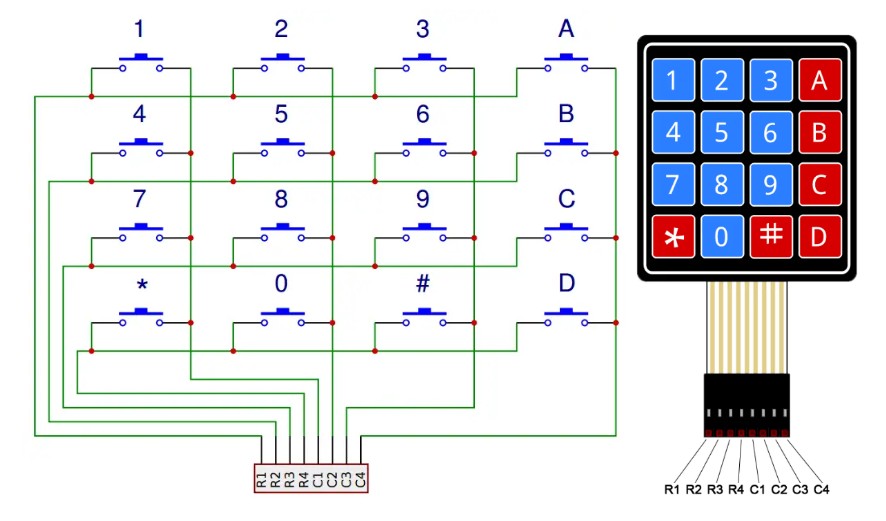
A keypad is a matrix of switches arranged in rows and columns, which allows many inputs from few microcontroller pins. A 4×4 keypad has 16 keys but needs only 8 GPIO pins — 4 rows and 4 columns.
How the keypad works
The rows and columns are connected to GPIO pins. Pressing a button connects one row to one column, so the microcontroller can tell which key is down by checking which row and column are joined.
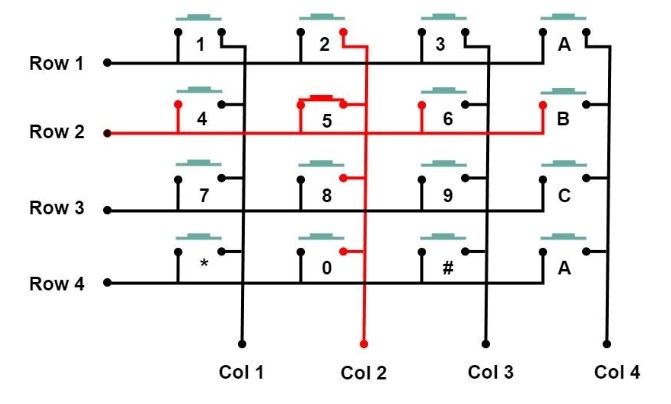
So how does it detect the key? Connect the rows to output pins and the columns to input pins. To identify the key pressed, drive one row high (1) and the others low (0), then read the column inputs. When a key is pressed, the connection between its row and column completes and that column pin reads 1. Knowing both the driven row and the high column tells you the key.
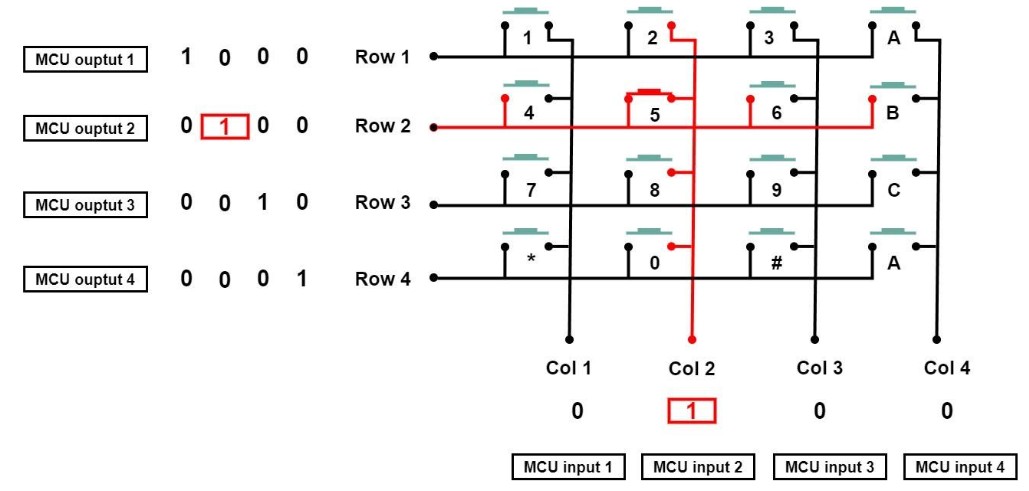
This assumes the column inputs are internally pulled down, so they read 0 when no key connects them to a driven row.
Scanning one row at a time, repeatedly, is what makes 8 pins enough — and it is why the scan has to run continuously in the background.
Materials and Equipment
- Breadboard
- STM32F4 evaluation board
- LEDs and push buttons
- Jumper wires
- 16×2 LCD with PCF8574 I²C adapter
- 4×4 matrix keypad
Relevant library functions
LCD functions
void LCD_init(void);                           /* Initialise the module before use */
void LCD_displayText(char *text);              /* Display a string from the cursor position */
void LCD_clear(void);                          /* Clear the screen, cursor to row 0, col 0 */
void LCD_setCursor(uint8_t row, uint8_t col);  /* Move the cursor */
void LCD_displayInt(int number);               /* Display an integer as text */
Keypad functions
These are used as part of the scanning process to detect which key is pressed.
drive_row_high(row);                  /* Drive one row high at a time */
ColumnInput column = read_columns();  /* Which column reads high */
uint8_t key = decode_key(row, column);/* Row + column -> character */
Activity
- Interface the STM32 with a 16×2 LCD module using the I²C protocol.
- The program asks the user to enter a predefined 4-digit PIN via the keypad.
- After the correct PIN is entered, the LCD is unlocked and the user can type numbers and characters and see them on the screen.
- If the PIN is incorrect, the system asks the user to try again.
Step 1: Wire the hardware
Before wiring, assign the microcontroller I/O pins to the keypad rows and columns as in the connection diagram.
- Rows → 4 GPIO outputs.
- Columns → 4 GPIO inputs, pulled down.
- SCL of the LCD adapter → PB6.
- SDA of the LCD adapter → PB7.
- +5 V and GND → the LCD adapter board.
Pins to avoid
- STM32F411 Nucleo: PA2, PA3, PC14, PC15, PA13, PA14.
- STM32F407 Discovery: PA13, PA14.
The LCD needs 5 V, the GPIOs are 3.3 V
Power the adapter board from 5 V — the HD44780's contrast circuit will not produce readable characters at 3.3 V. The SDA and SCL lines are fine, because the board's pull-ups go to its own VCC and the STM32's I²C pins are 5 V tolerant. Do not power the LCD from the 3.3 V rail and then wonder why the backlight is on but the screen is blank.
Step 2: Configure the peripherals
Create the project. Follow Setup Guide → Create a lab project with the name
Exp2_Lock.Clock configuration. Enable the external clock in the RCC tab and select the maximum clock frequency in the Clock Configuration window.
Configure the GPIO pins. Use the Device Configuration Tool to configure the keypad pins: rows as outputs, columns as inputs.
Give every pin a User Label. The library expects these exact names:
COL1 COL2 COL3 COL4 ROW1 ROW2 ROW3 ROW4Do not forget to set Pull-down on the four column inputs.
Configure I²C. Enable I2C1 in Standard Mode with the clock speed set to 100 kHz.
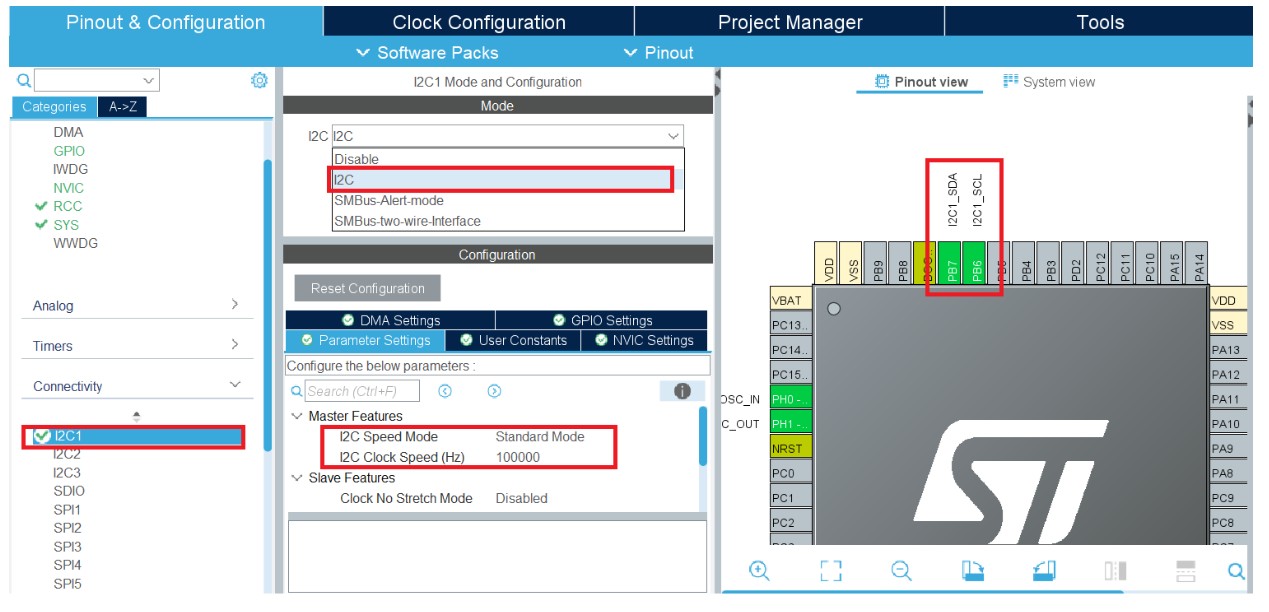
Check that CubeMX assigned I2C1_SCL to PB6 and I2C1_SDA to PB7 to match your wiring. If it picked PB8/PB9, click the pin in the pinout view and reassign it.
Generate the code.
Step 3: Add the libraries
Copy (or drag and drop) the library files from this link into the locations shown:
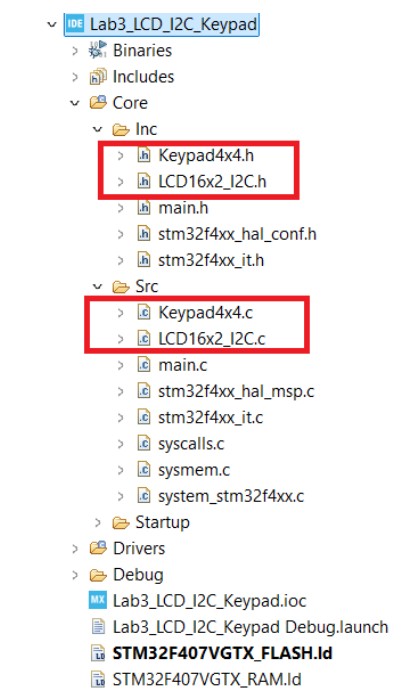
The .h files go in Core/Inc/ and the .c files in Core/Src/, so the build picks them up automatically. Then include them in main.c, along with the globals and macros this program needs:
/* USER CODE BEGIN Includes */
#include <string.h>
#include <stdio.h>
#include <LCD16x2_I2C.h>
#include <Keypad4x4.h>
/* USER CODE END Includes */

/* USER CODE BEGIN PD */
#define PASSWORD        "1234"   /* predefined PIN */
#define PASSWORD_LENGTH 4
/* USER CODE END PD */

/* USER CODE BEGIN PV */
volatile uint8_t  key          = 0;   /* last decoded key   */
volatile uint8_t  pressFlag    = 0;   /* set by the scanner */
volatile uint8_t  SysTicks     = 0;   /* 1 ms tick counter  */
volatile uint32_t currentTick  = 0;
volatile uint32_t previousTick = 0;

const uint32_t debounceTime = 150;    /* ms */
/* USER CODE END PV */
If the compiler cannot find the headers
Right-click the project → Refresh (F5), then Project → Clean. CubeIDE only compiles files it knows about, and it does not notice files dropped in from the file manager until you refresh.
Step 4: Scan the keypad from SysTick
SysTick_Handler is used to periodically scan the keypad and detect which key is pressed. The SysTick timer already generates an interrupt every 1 ms — HAL uses it for HAL_GetTick() — so you override the handler and add your own work, scanning one row every 5 ms.
/* USER CODE BEGIN 4 */
void SysTick_Handler(void)
{
    static uint8_t row = 0;

    HAL_IncTick();          /* keep HAL_GetTick() / HAL_Delay() working */
    SysTicks++;

    if (SysTicks == 5)      /* scan one row every 5 ms */
    {
        /* Drive one row high at a time */
        drive_row_high(row);

        /* Read the four column inputs */
        ColumnInput column = read_columns();

        /* A high column means the key at (row, column) is down */
        if ((column == COL1) || (column == COL2) ||
            (column == COL3) || (column == COL4))
        {
            currentTick = HAL_GetTick();

            if ((currentTick - previousTick) > debounceTime)
            {
                key       = decode_key(row, column);
                pressFlag = 1;          /* tell main() there is a key */
            }

            previousTick = currentTick;
        }

        row = (row + 1) % 4;   /* next row on the next scan */
        SysTicks = 0;
    }
}
/* USER CODE END 4 */
Three things to notice:
HAL_IncTick()stays first. The handler you are overriding is HAL's own, and that call is what makesHAL_GetTick()andHAL_Delay()work. Remove it and the whole HAL timebase stops — including the debouncing below it.- One row per interrupt, not all four.
rowisstatic, so it remembers its place between calls. A full scan of the keypad therefore takes 4 × 5 = 20 ms, fast enough that no human notices. - Same debouncing as Experiment 1. Compare
HAL_GetTick()against the last accepted press and ignore anything withindebounceTime.
CubeMX also generates a SysTick_Handler
stm32f4xx_it.c already contains a SysTick_Handler with HAL_IncTick() in it. Put your version there, inside its USER CODE markers — do not add a second definition in main.c, or the linker will fail with multiple definition of SysTick_Handler.
Step 5: Write the PIN check
The first function asks the user to enter a password on the keypad and checks whether it is correct. The second displays a pressed key on the LCD.
/* USER CODE BEGIN 4 */
void password_check(void)
{
    int  pos = -1;
    char input[PASSWORD_LENGTH];

    while (1)
    {
        if (pressFlag == 1)
        {
            pos++;
            input[pos] = key;

            LCD_setCursor(1, pos);
            LCD_displayText("*");       /* never echo the PIN itself */

            pressFlag = 0;
        }

        if (pos >= PASSWORD_LENGTH)
        {
            if (strncmp(input, PASSWORD, PASSWORD_LENGTH) == 0)
            {
                LCD_clear();
                LCD_setCursor(0, 0);
                LCD_displayText("Correct PIN");
                break;                  /* unlocked: carry on */
            }
            else
            {
                LCD_clear();
                LCD_setCursor(0, 0);
                LCD_displayText("Try again: ");
                pos = -1;               /* start the entry over */
            }
        }
    }
}

void handle_keypress(uint8_t key)
{
    char numStr[16];

    LCD_clear();
    LCD_setCursor(0, 0);
    sprintf(numStr, "%c", key);
    LCD_displayText(numStr);
}
/* USER CODE END 4 */
password_check keeps asking for a 4-digit password. Each time a key is pressed it shows a * on the LCD. Once four keys are entered, it compares them with the correct password: if they match it prints "Correct PIN" and returns, and otherwise it prints "Try again" and restarts the input.
Note that the global pressFlag becomes 1 when the keypad scanner detects a key press — that is the only way this function learns about the keypad.
Why strncmp and not ==
input is a char[4], i.e. a pointer when passed around, so input == PASSWORD would compare addresses and always be false. strncmp(a, b, n) compares the first n characters and returns 0 when they match. It is strncmp rather than strcmp because input holds exactly 4 characters with no terminating \0 — strcmp would read past the end of the array.
Step 6: Put it together
In main.c:
- Include all the required libraries.
- Define the variables from Step 3.
- Add
password_checkandhandle_keypresswith their prototypes. - Override
SysTick_Handlerwith the code from Step 4. - In
main, before thewhileloop, initialise the LCD and check the password. - In the loop, check whether a key press has occurred (via
pressFlag); if so print the character to the LCD and reset the flag.
int main(void)
{
    HAL_Init();
    SystemClock_Config();
    MX_GPIO_Init();
    MX_I2C1_Init();

    /* USER CODE BEGIN 2 */
    LCD_init();
    LCD_clear();
    LCD_setCursor(0, 0);
    LCD_displayText("Enter Password!");

    password_check();          /* blocks until the PIN is correct */
    /* USER CODE END 2 */

    /* USER CODE BEGIN WHILE */
    while (1)
    {
        if (pressFlag == 1)
        {
            handle_keypress(key);
            pressFlag = 0;
        }
    }
    /* USER CODE END WHILE */
}
Build the project and flash it to your STM32.
Notes on the firmware design
- The keypad detection is implemented in non-blocking mode: the main program is not held up while the keypad is scanned. The SysTick timer, which interrupts every 1 ms, makes this possible.
- At every SysTick interrupt an ISR runs — the SysTick interrupt handler. Here you write your own routine inside it to detect pressed keys every 5 ms.
- In practice, an ISR should perform only minimal tasks that take very little time, because it must respond quickly without delaying other processes.
- Instead of executing complex operations inside the ISR, use flags to signal that an event occurred. Other functions in the main program check those flags and do the real work outside the ISR.
- This keeps the system responsive and avoids delays caused by long ISRs.
- Keypad buttons suffer from bouncing, where one press generates multiple signals, so debouncing logic is included. For more detail, see Experiment 1.
Where this design is still imperfect
password_check() contains its own while (1) loop, so it blocks until the PIN is right — the opposite of the non-blocking principle above. It works because nothing else has to happen during unlocking. Once your system also has to blink an LED or drive a motor, this becomes a state machine in the main loop instead. Keep that in mind from Experiment 4 onward.
Common problems
| Symptom | Cause and fix |
|---|---|
| Backlight on, screen blank | Contrast. Turn the trimmer on the adapter board until the blocks appear. Then check the LCD is on 5 V, not 3.3 V. |
| Nothing at all on the LCD | Wrong I²C address. Try 0x4E, then 0x27, then scan the bus (below). Check SDA/SCL are not swapped. |
| First row of blocks, no text | LCD_init() was called before the I²C peripheral was initialised. It must come after MX_I2C1_Init(). |
Build fails: multiple definition of SysTick_Handler | You defined it in main.c as well as stm32f4xx_it.c. Keep only the one in stm32f4xx_it.c. |
Board hangs after LCD_init() | The I²C transfer is timing out because no slave is acknowledging — i.e. an address or wiring problem. The HAL call blocks until timeout. |
| One key press registers several times | debounceTime too small, or you reset previousTick in the wrong place. |
| Keys in the wrong positions | Rows and columns are swapped, or the user labels do not match ROW1–ROW4 / COL1–COL4. |
| Whole rows of keys dead | That row's output pin is not configured, or the column inputs are not pulled down. |
HAL_Delay() never returns | You removed HAL_IncTick() from SysTick_Handler. |
Scanning the I²C bus for your device's address
Drop this in temporarily, after MX_I2C1_Init(), and watch found in Live Expressions:
volatile uint8_t found = 0;
for (uint8_t addr = 1; addr < 128; addr++) {
    if (HAL_I2C_IsDeviceReady(&hi2c1, addr << 1, 2, 10) == HAL_OK) {
        found = addr;   /* 7-bit address; use (found << 1) with the HAL */
        break;
    }
}
Post-lab questions
- Explain why the SysTick timer is used in this experiment instead of polling inside the main loop.
- What would happen if the keypad scanning code were placed entirely inside the
while (1)loop instead of the SysTick handler? - Why is it important to minimise the code executed inside an interrupt service routine?
- How does using I²C to control the LCD simplify hardware wiring compared with direct parallel interfacing?
- Why do we use flags like
pressFlaginstead of callinghandle_keypress()directly insideSysTick_Handler?
Tasks
- Add two LEDs to indicate whether the entered password is correct:
- Green LED lights when the password is correct.
- Red LED lights when the password is incorrect.
- Modify the system so that after three incorrect attempts it locks for 5 seconds and displays "Access Denied".
- (Optional) Change
password_check()so the user can change the password after entering the correct one.
For task 2
You need 5 seconds to pass without freezing the keypad scanner. HAL_Delay(5000) is the easy answer and will work here — but try doing it by recording HAL_GetTick() at the moment of lockout and comparing against it in the loop, which is the approach that keeps scaling.